From site request to signed LPO, in one place.
ANYRFQ follows every purchase from the moment a site asks for it to the moment the supplier is paid. Here is each step, who does it, and what the platform does for you.

Requests from every site, one procurement desk.
Each project site raises its own material requests. Project managers approve them, and your procurement team turns approved requests into RFQs without retyping a single line.
- Every site, one viewSee requests from all your projects with their status at a glance.
- Approve before you buyNothing reaches procurement until the project manager signs it off.
- One click to an RFQItems, quantities and notes copy straight into a draft RFQ.
- Traceable to the endThe request follows its RFQ all the way to completion.
Ten steps, one record from start to finish.
Every step happens on the same RFQ, so nothing lives in someone's inbox or on one laptop.
A site raises a material request
Site staff list what their project needs: products, rentals or services, with quantities, units and a needed-by date.
- Raised against the project it belongs to
- Numbered automatically, for example MR-2610-00041
- Rentals and services carry duration, scope and start date
The project manager approves it
The project manager reviews each request and approves it, returns it for changes, or rejects it with a reason.
- Requests raised by the project manager are approved automatically
- Returned requests go back to the requester to fix and resubmit
- Everyone involved is notified at each step
Procurement turns it into an RFQ
One click turns an approved request into a draft RFQ, with every line copied across and linked back to the request.
- Finish it in a 4-step wizard: items, documents, payment and delivery, review
- Ask suppliers for documents, mandatory or optional
- Set the delivery emirate, payment terms and how long the RFQ stays open


Post it to the marketplace
Publish the RFQ to the ANYRFQ marketplace and, if you like, invite the suppliers you already work with.
- Invite registered suppliers straight from your vendor lists
- Email a quote link to suppliers who are not on ANYRFQ yet
- Extend the closing date while the RFQ is still open
Matching suppliers are alerted
Every verified supplier is scored against your RFQ on industry, keywords, emirates covered, item types and order size.
- Strong matches get an email and an in-app alert
- Other matches see it in-app and in a daily digest
- Suppliers can browse and filter open RFQs at any time


Suppliers send itemised quotes
Suppliers price the lines they can supply, with delivery time, validity, payment terms and the documents you asked for.
- Quote on every line or only some of them
- Got a quote by email or phone? Record it so everything is compared in one place
- Late quotes are flagged and the RFQ closes itself at the deadline
Compare and evaluate
Every quote lines up side by side, line by line, so the best offer is obvious.
- Best price and fastest delivery highlighted, with % above or below average
- Landed cost including delivery and VAT
- Weighted scoring on price, delivery, reliability and compliance
- Split-award suggestion: cheapest per line vs best single supplier
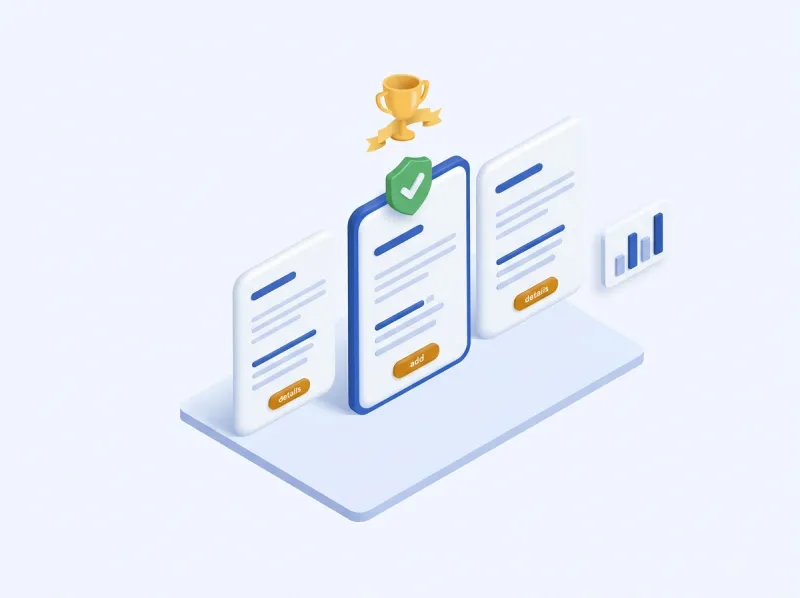

Award the RFQ
Award the whole RFQ to one supplier, or split it line by line across several.
- Every award carries a written justification
- Download an award report PDF for your records
- Winners are notified and unsuccessful lines are declined automatically
Issue the LPO
Generate an LPO for each awarded supplier from your own terms and conditions.
- Send it in the platform or by email as a PDF
- The supplier reviews and accepts it online
- Any change to quantity or price needs the supplier to approve it
Deliver, invoice, pay and close
Follow the order to the end, all against the same RFQ.
- Supplier logs deliveries, full or partial; you confirm or dispute them
- Supplier raises a tax invoice from the accepted LPO; you approve it
- Record payments, including part payments
- Close the contract, rate the supplier, and the original request completes too
Contract complete. Every document, decision and payment stays on record.
Everyone sees their part.
Roles and permissions keep each person focused on what they own.
See it with your own requirements.
Register free and post your first RFQ, or ask us for a walk-through.